

Description
Download HD Cleaner – Free, Secure Disk Space Optimizer for Windows & macOS
Overview
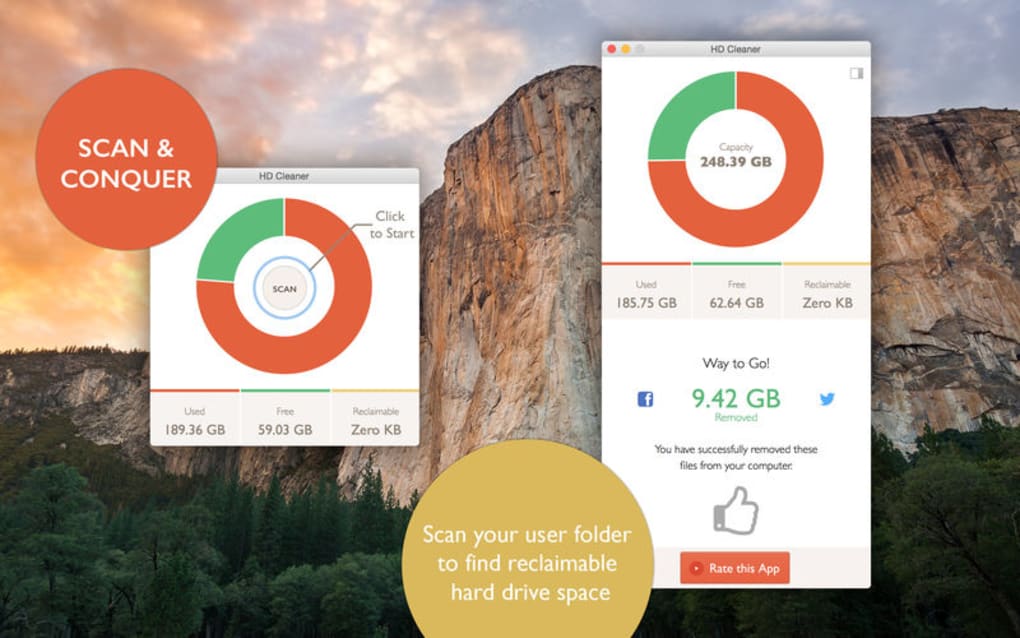
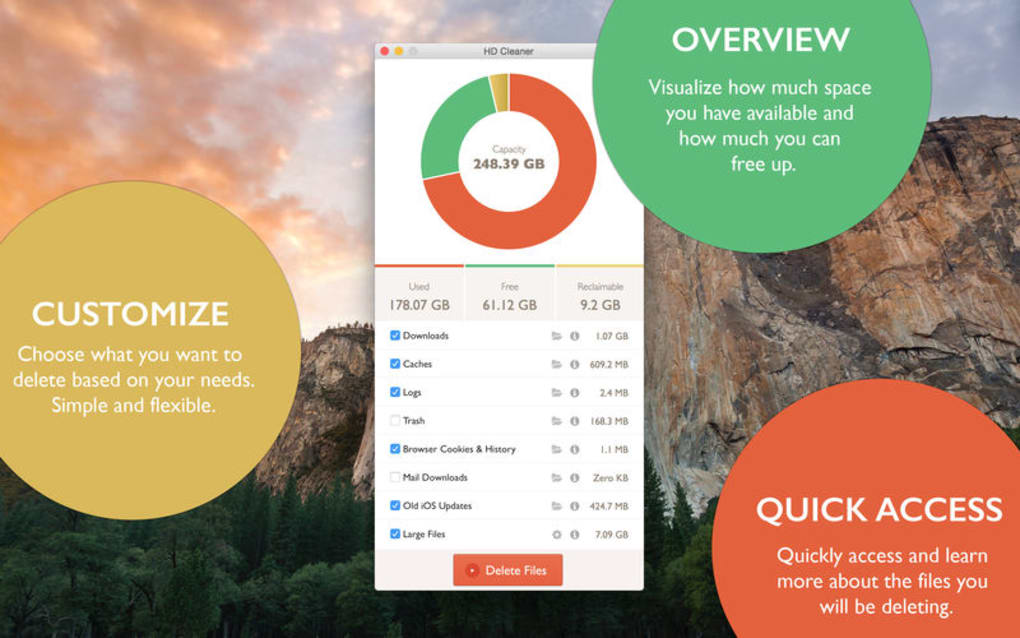
HD Cleaner is a lightweight yet powerful utility designed to free up hard‑drive space and boost overall system performance. Positioned as an affordable alternative to premium tools like CCleaner Professional, HD Cleaner delivers a clean, user‑friendly interface while still offering a comprehensive set of maintenance functions. The core mission of the software is simple: locate redundant, duplicate, or corrupt files and give you the confidence to delete them safely. In addition to basic junk‑file removal, HD Cleaner presents intuitive graphs that illustrate how much storage is currently occupied versus how much is free, allowing you to visualise the impact of each clean‑up operation in real time. Whether you are a casual home user battling a cluttered Downloads folder or an IT professional looking to streamline multiple machines, HD Cleaner provides a reliable, cost‑free solution that works across the most common operating systems.
Key Features
- Duplicate File Detection: Scans all drives for exact copies, presenting a clear list with size and location details.
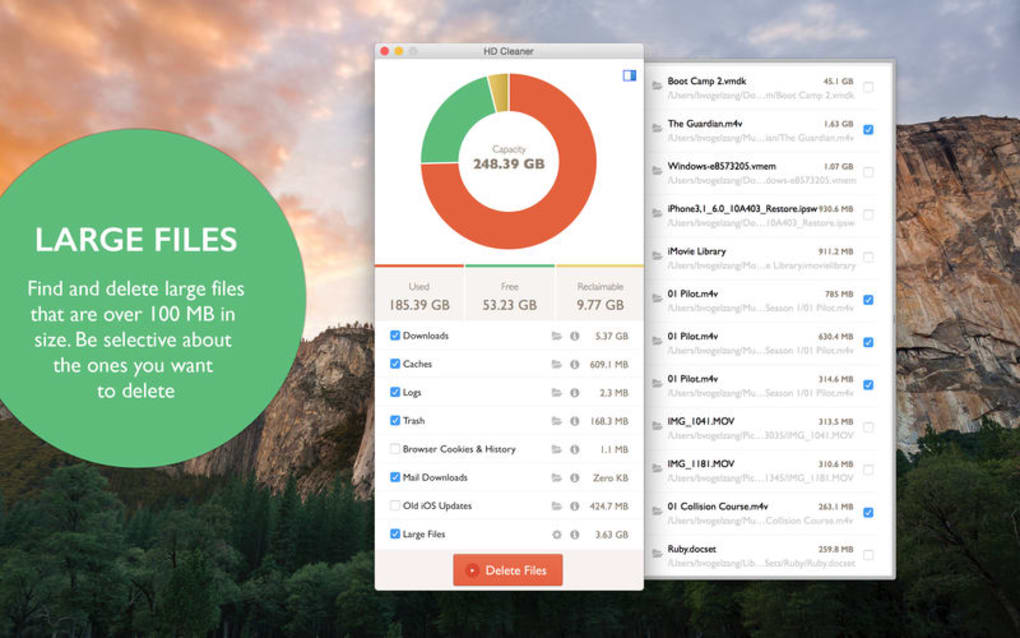
- Large File Purge: Identifies files over 100 MB so you can quickly decide which media, installers, or archives to keep.
- System Cache & Log Cleaner: Removes temporary caches, system logs, and leftover installer files that waste space.
- Browser History & Cookie Scrubber: Clears browsing footprints from Chrome, Firefox, Edge, and Safari in one click.
- Update History Viewer: Shows previous OS updates, helping you pinpoint large update packages that can be safely removed.
- Interactive Disk‑Space Graphs: Real‑time pie and bar charts illustrate space distribution across folders and file types.
- One‑Click Clean‑Up: Pre‑configured “Quick Clean” mode lets you free up space without diving into advanced settings.
- Safe‑Delete Preview: Before removal, a preview window displays the exact files to be deleted, preventing accidental loss.
- Scheduled Scans: Set daily, weekly, or monthly scans to keep your drive tidy automatically.
- Multi‑Language Support: Available in English, Spanish, German, French, and more.
Installation & Usage Instructions
Step‑by‑Step Installation
1. Download the Installer: Click the Download HD Cleaner button on the official website. The file is a small .exe for Windows or .dmg for macOS, typically under 15 MB, ensuring a quick download even on slower connections.
2. Run the Installer: On Windows, double‑click the .exe and follow the guided wizard. macOS users should open the .dmg, drag the HD Cleaner icon into the Applications folder, and confirm any security prompts.
3. Accept the License: Review the end‑user license agreement (EULA) and click “I Agree” to continue. The installer will then extract the necessary files and create a desktop shortcut for easy access.
4. Launch the Application: Open HD Cleaner from the shortcut or the Start Menu (Windows) / Launchpad (macOS). The first launch may trigger a short update check; this ensures you are running the latest virus‑free version.
How to Perform a Clean‑Up
Upon opening, you will be greeted by the main dashboard, which displays a colourful disk‑space graph. To begin a scan, click the “Start Scan” button located at the top‑right corner. HD Cleaner will automatically assess the selected drive, checking for duplicates, large files, caches, and browser remnants. The scanning process usually completes within 2‑5 minutes, depending on drive size and data volume.
Once the scan finishes, results are grouped into categories. You can expand each category to view individual files, their sizes, and locations. Use the checkboxes next to each file to select what you wish to delete. If you are unsure, click the “Preview” button to open a small window showing file metadata (date created, last accessed, etc.). When satisfied, press the “Delete Selected” button. HD Cleaner moves files to the Recycle Bin (Windows) or Trash (macOS), offering a safety net in case of accidental removal.
For ongoing maintenance, enable the Scheduled Scans feature under Settings → Automation. Choose a frequency, select the drives you want to monitor, and let HD Cleaner run in the background. You will receive a desktop notification when the scan completes, summarising reclaimed space.
The interface also provides a “Report Export” option, allowing you to save a CSV file of the scan results for documentation or audit purposes. This is especially handy for businesses that need to keep records of system optimisation activities.
Compatibility, Pros & Cons
HD Cleaner is built for both Windows and macOS platforms. Officially supported versions include Windows 10, Windows 11, and Windows 7 (SP1 or later). For macOS, the software runs on macOS 10.13 High Sierra and newer, including Ventura and Sonoma. While a Linux version is not currently offered, the program can be executed through Wine with limited functionality.
Pros
- Free to use with no hidden subscription fees.
- Simple, uncluttered UI that beginners can navigate effortlessly.
- Comprehensive scan that covers duplicates, large files, caches, and browser data.
- Interactive visualisations make it easy to understand storage distribution.
- Safe‑delete preview prevents accidental loss of important files.
- Scheduled scans automate regular maintenance without user intervention.
- Low system footprint; runs quickly even on older hardware.
Cons
- No built‑in SSD health monitoring or SMART analysis.
- Lacks deep registry cleaning, which some power users expect.
- Only supports a limited set of browsers for history & cookie cleaning.
- No mobile (Android/iOS) companion app, restricting cross‑device usage.
- Advanced custom filter options are minimal compared to premium competitors.
Frequently Asked Questions
Is HD Cleaner safe to use on important files?
Yes. HD Cleaner never deletes files automatically. It always presents a preview list with checkboxes, allowing you to confirm each deletion. Additionally, removed items are sent to the Recycle Bin or Trash, where they can be restored if needed.
Can HD Cleaner clean SSD drives without affecting their lifespan?
HD Cleaner performs file‑level deletions only, which does not involve the intensive read/write cycles that can wear out SSDs. However, it does not include SSD‑specific optimisations like TRIM management, so using a dedicated SSD utility alongside HD Cleaner is recommended.
Does the free version have any hidden ads or upsells?
The free version is ad‑free and does not display intrusive pop‑ups. The developers occasionally suggest the paid “Pro” edition for advanced features, but installation or usage of the free version is completely unrestricted.
How often is HD Cleaner updated?
Updates are released roughly every 2‑3 months, focusing on improved detection algorithms, new browser support, and compatibility with the latest Windows and macOS updates. The application checks for updates automatically on launch.
Can I export a report of the files that were cleaned?
Yes. After a scan, the “Report Export” button creates a CSV file that lists every identified file, its size, path, and whether it was selected for deletion. This is useful for audit trails or sharing results with IT teams.
Conclusion & Call to Action
In a market saturated with pricey system‑optimisation suites, HD Cleaner stands out as a straightforward, free, and secure option for reclaiming hard‑drive space. Its blend of duplicate detection, large‑file purging, cache cleaning, and clear visual feedback equips both novices and seasoned users with the tools they need to keep a PC or Mac running smoothly. While it doesn’t replace a full‑featured maintenance suite for power users, its low‑impact design, safety features, and regular updates make it an excellent first line of defence against storage bloat.
If you’re looking to free up gigabytes of space without diving into complex settings or paying for a subscription, download HD Cleaner today and start the quick clean‑up process. Experience the difference a tidy drive can make to system responsiveness, boot times, and overall productivity.
Guides & Tutorials for HD Cleaner
How to install HD Cleaner
- Click the Preview / Download button above.
- Once redirected, accept the terms and click Install.
- Wait for the HD Cleaner download to finish on your device.
How to use HD Cleaner
This software is primarily used for its core features described above. Open the app after installation to explore its capabilities.
User Reviews for HD Cleaner 0
No reviews found





.webp)